 DevRok
How to use Event Day
Guests, invitations, QR check-in at the door and a live run of show — on a monday.com board of guests.
Before you start
- A monday.com account where you can install apps (account admins can always install; members can if the admin allows it).
- A board with one item per guest — the guest’s name in the item name and, to send invitations, an email column. Event Day can add the other columns it needs.
1. Install the app and add it to your guest board
- Open Event Day in the monday.com apps marketplace and click Install.
- Open your board of guests, click + next to the board’s views and choose Apps → Event Day.
- Click Connect and authorize the app. This is needed once per account: it lets guests and door staff use their links without a monday.com account, while the app writes their answers to your board.
2. Set up the event
- In Event settings, enter the event name, date, start and end time, time zone, venue and the organizer’s contact. Guests can reply to the organizer’s email.
- Optionally set a capacity (guests who answer when the event is full join the waitlist) and allow a plus-one.
- Choose the board columns for the RSVP answer, the check-in mark, email, plus-ones, guest notes and personal links. Columns with usual names are picked automatically; Add column creates any that are missing.
- Click Create event. Board owners and account admins can change these settings.
3. Invite guests and collect answers
- In Guests, click Invite to email every guest who has an email and has not been invited yet. Their RSVP becomes Invited. Remind emails those who have not answered.
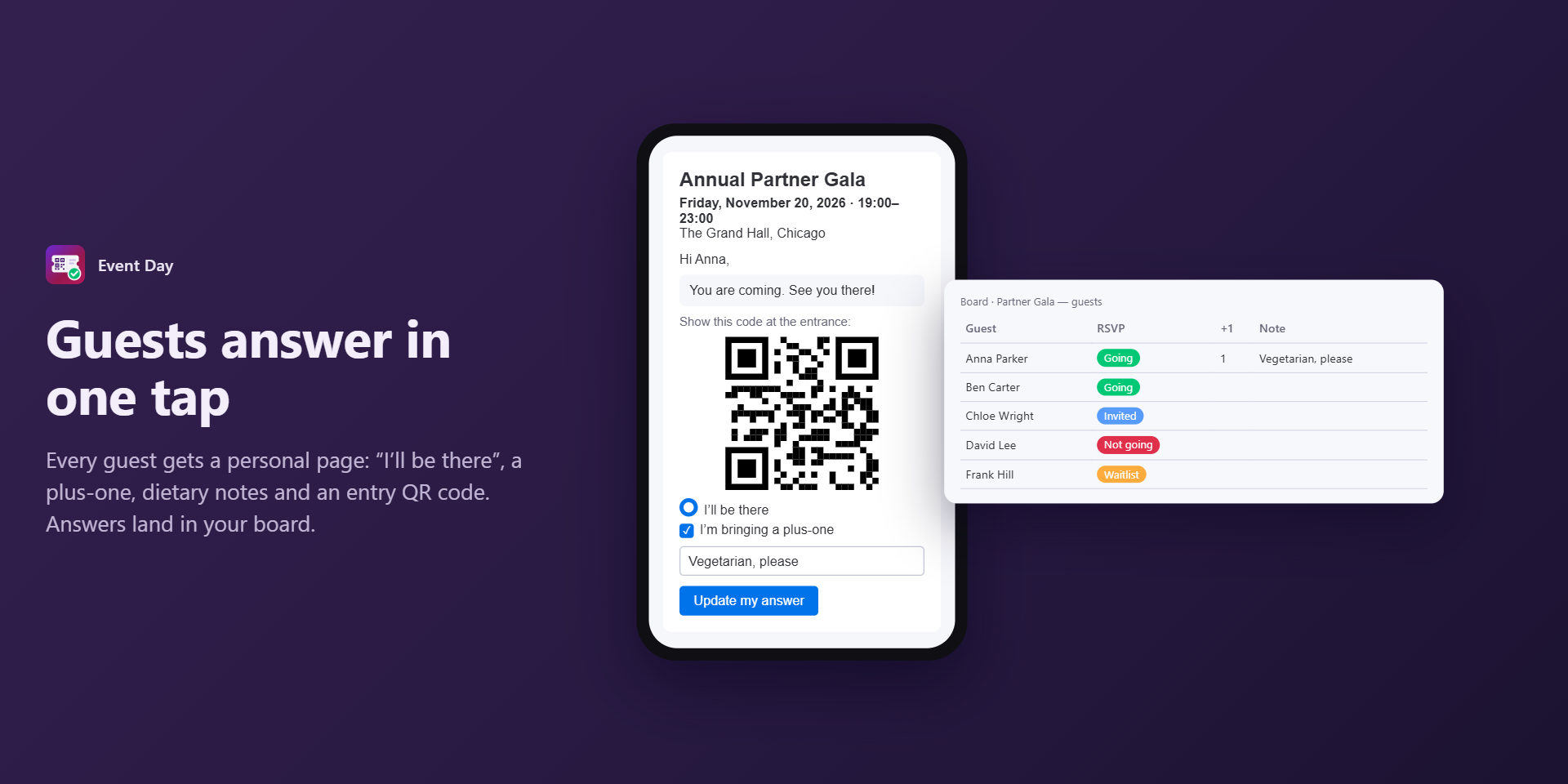
- Each guest’s personal page shows the event, lets them answer, bring a plus-one and leave a note, and offers a calendar file. Answers appear on the board right away, and the organizer gets a monday.com notification.
- Prefer your own mailbox? Click Add personal links to the board and use a monday.com automation that sends an email through Gmail or Outlook with the link column. Or click Link next to a guest to copy their link.
4. Check guests in at the door
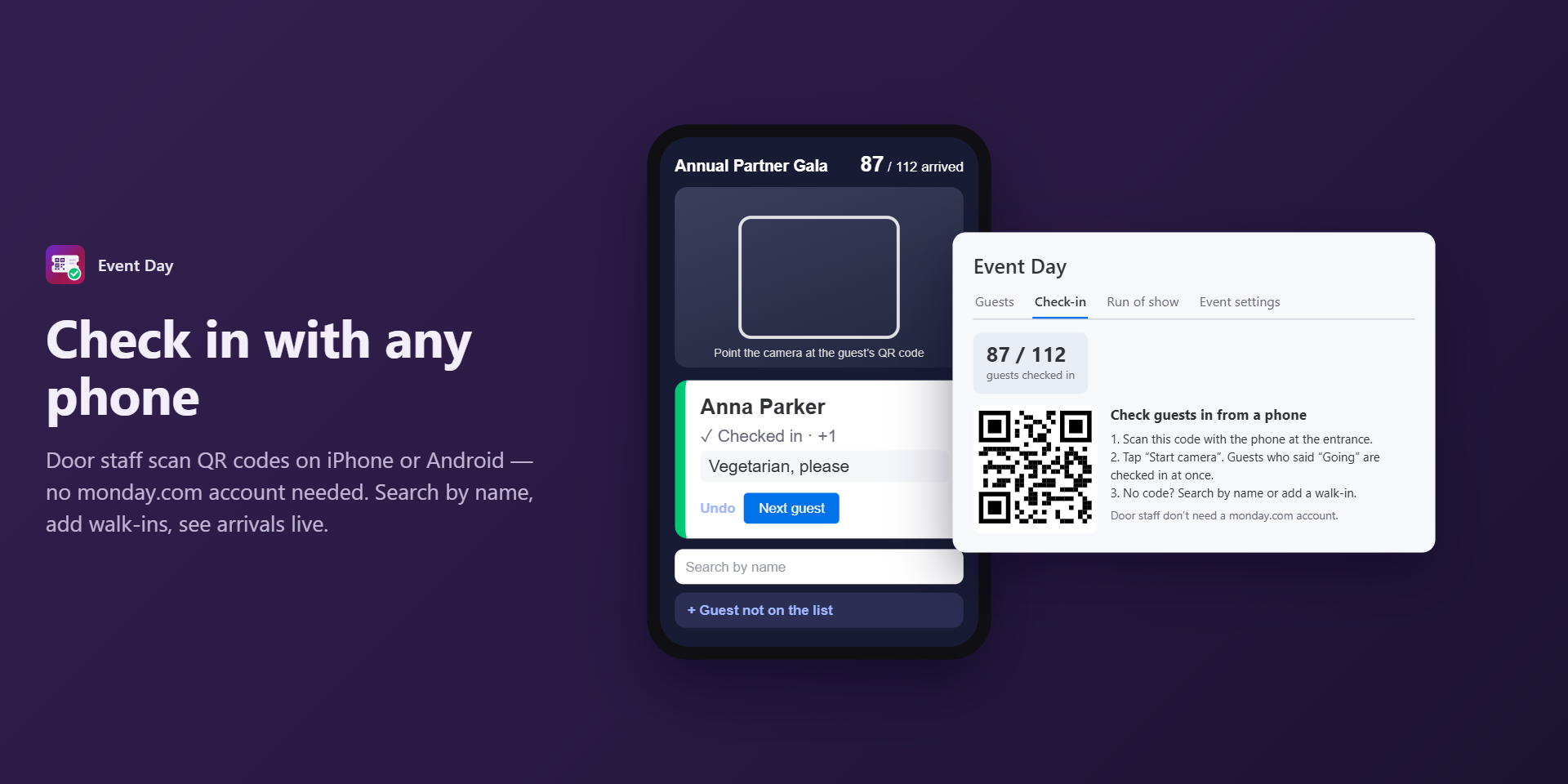
- Open Check-in and scan its QR code with the phone at the entrance, or send the link to your door staff. They do not need a monday.com account.
- Tap Start camera and point it at each guest’s QR code (guests see it on their page once they answer “I’ll be there”). Guests who are going are checked in at once; a second scan shows Already checked in.
- No code? Search by name. Not on the list? Use Guest not on the list to add and check them in.
Anyone with the check-in link can see the guest list. Share it only with your team. Replace link (board owners) stops the old link at once. The camera image is processed on the phone and never uploaded.
5. Plan and run the show
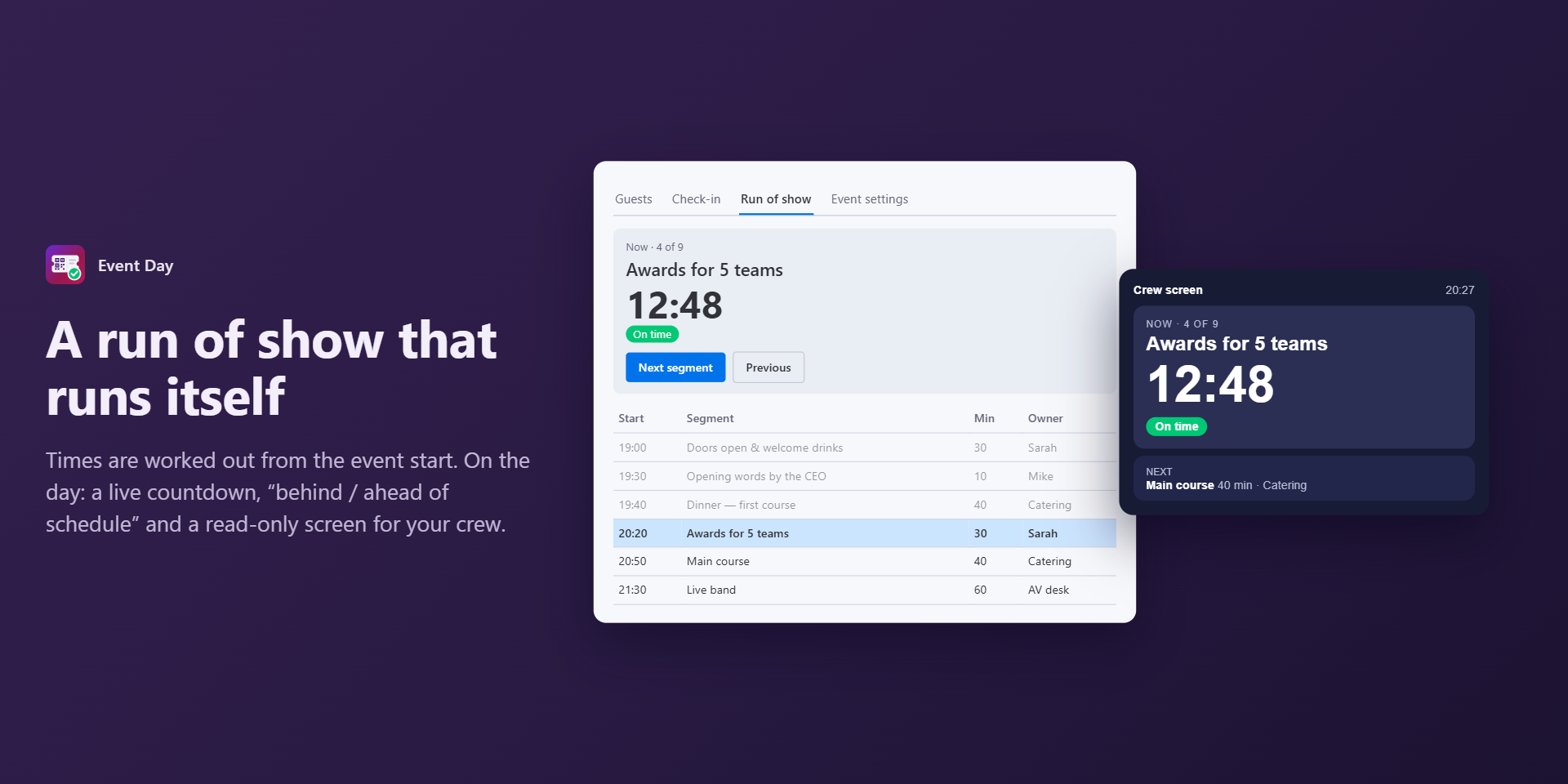
- In Run of show, click Create a run-of-show board (or use an existing board and choose its duration column). Each segment is an item with a duration in minutes, an owner and notes.
- Start times are worked out from the event start. Reorder segments with the arrows, add segments, print the programme or write the times to the board.
- On the day, click Start show and Next segment as you go. The live panel shows the countdown and whether you are behind or ahead of schedule. Share the crew screen link with your host or AV desk (Pro and Business).
AI by monday
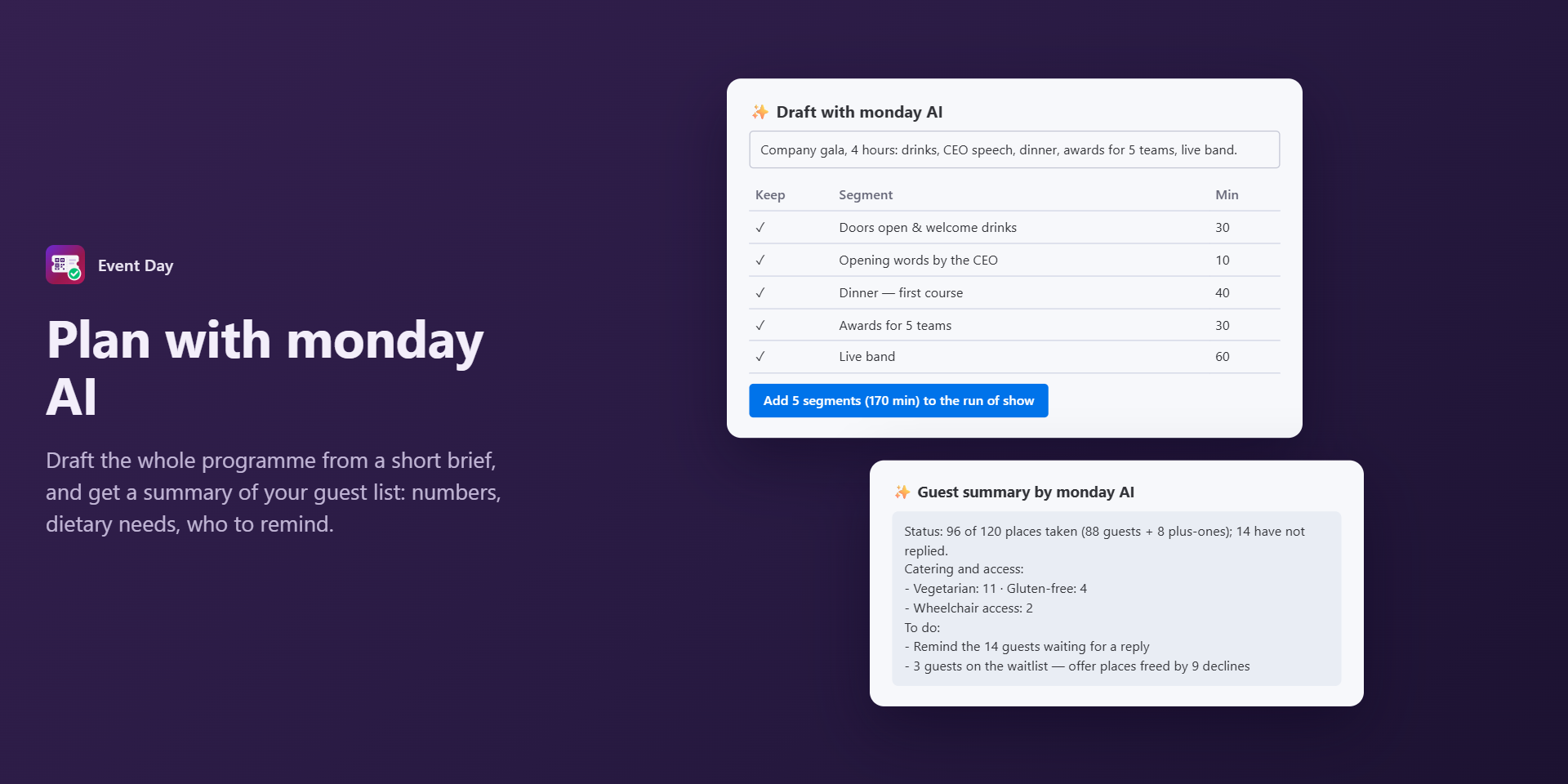
- Draft the programme with AI: describe the event in a sentence or two; review the proposed segments, keep or edit them, and add them to the run of show.
- Summarize guests with AI: numbers, dietary and access needs from guest notes, and what to do next.
- Both run only when you click them and use your account’s monday AI credits. monday AI must be available on your account (an admin manages it in Administration → AI governance). AI can make mistakes — check names, numbers and timing.
Plans
The Free plan covers one event at a time with up to 50 guests and 100 guest emails a month. Pro and Business add unlimited events, more guests and emails, the live run of show and the crew screen. Plans are managed in monday.com; the Upgrade button in the app opens the plan page. Guests beyond your plan’s limit (counted in board order) get no invitation, personal page or check-in.
Questions
- Who can see the event? Everyone who can see the board. Viewers see guests and the programme but cannot send invitations or open the check-in.
- Can a guest forward their link? The link is personal: whoever opens it can answer for that guest. The QR code works only for that guest and only once at the door.
- What happens if I uninstall? Links stop working and the access token is deleted. Guests and their answers stay on your board.
- Need help? Email support@devrok.com.